


Table of Contents
- 1. Introduction
- 2. What Is Rate Dashboard?
- 3. Investigating Thresholds
- 4. Applying Rules Based on the Investigated Threshold
- 5. Conclusion
1. Introduction
On December 10, 2025, WafCharm released a new optional feature for AWS users called the Log Intelligence option. The Log Intelligence option is a paid option that provides extended WAF log functionality upon subscription. For more details, please refer to the blog post below:
Announcing New WAF Log Retention Settings and the Log Intelligence Option
When the Log Intelligence option first launched, Bot Dashboard was the only extended feature available. Since then, we have also added Rate Dashboard. In this post, we'd like to take a closer look at the Rate Dashboard feature.
2. What Is Rate Dashboard?
Rate Dashboard is a new feature in our WafCharm Console that helps you determine appropriate thresholds for rate-based rules based on your integrated WAF logs. When traffic load increases, you can use this dashboard to investigate and identify the right threshold values.
For more details, please also refer to the help page below:
About Rate Dashboard
Please note that this feature is only available when you are already subscribed to the Log Intelligence option and WAF log integration is enabled under the Advanced Rule policy.
3. Investigating Thresholds
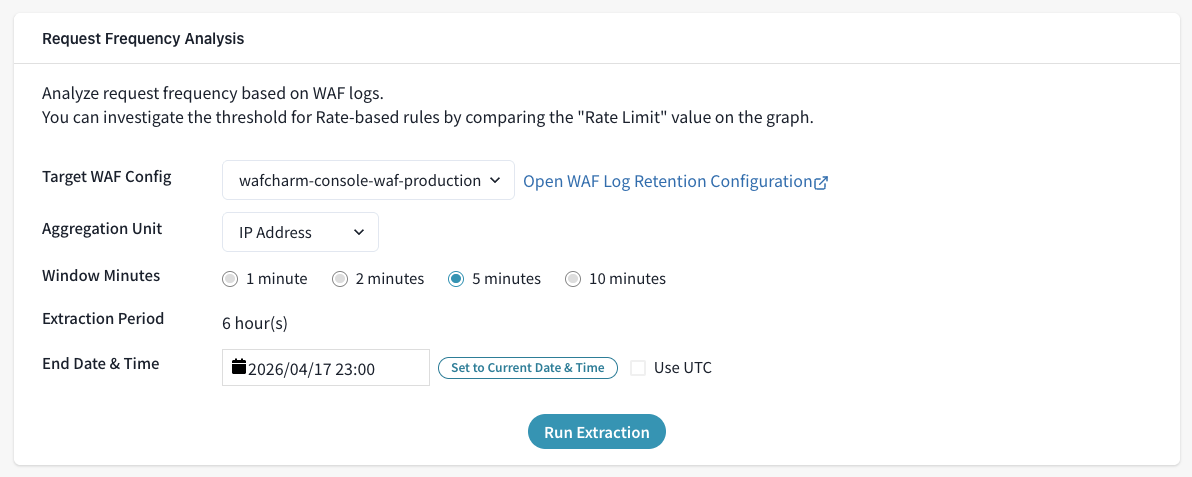
When you first open Rate Dashboard, you will see the request frequency analysis panel(screenshot below), where you can search for your target WAF Config. You select the target WAF Config and define the conditions to extract the data.
As noted in the help page above, the extraction period varies depending on the window minutes. For this example, we will assume that there was a sudden spike in requests within the past 6 hours, and we would set the “window minutes” to 5. The result data is displayed by looking back from the “end date &time” by the length of the extraction period, so even if the spike occurred a few days ago, you can view that data by adjusting the “end date & time”.
After selecting your settings and clicking the "Run Extraction" button, a graph will show(screenshot below). Hovering the mouse over the graph shows how many requests occurred at each point in time, along with request source information such as IP addresses, in the panel below.
In this example, we will consider 500 requests as the baseline traffic level. Looking at the graph, it appears that traffic begins to spike around 8:55 PM. Entering a number in the "Rate Limit" field draws a horizontal line on the graph, so we entered "500" — a value higher than the normal request count but below the spike.
Looking at the graph, a threshold of 500 requests per 5 minutes is good to eliminate the noise and to assume the threshold value.
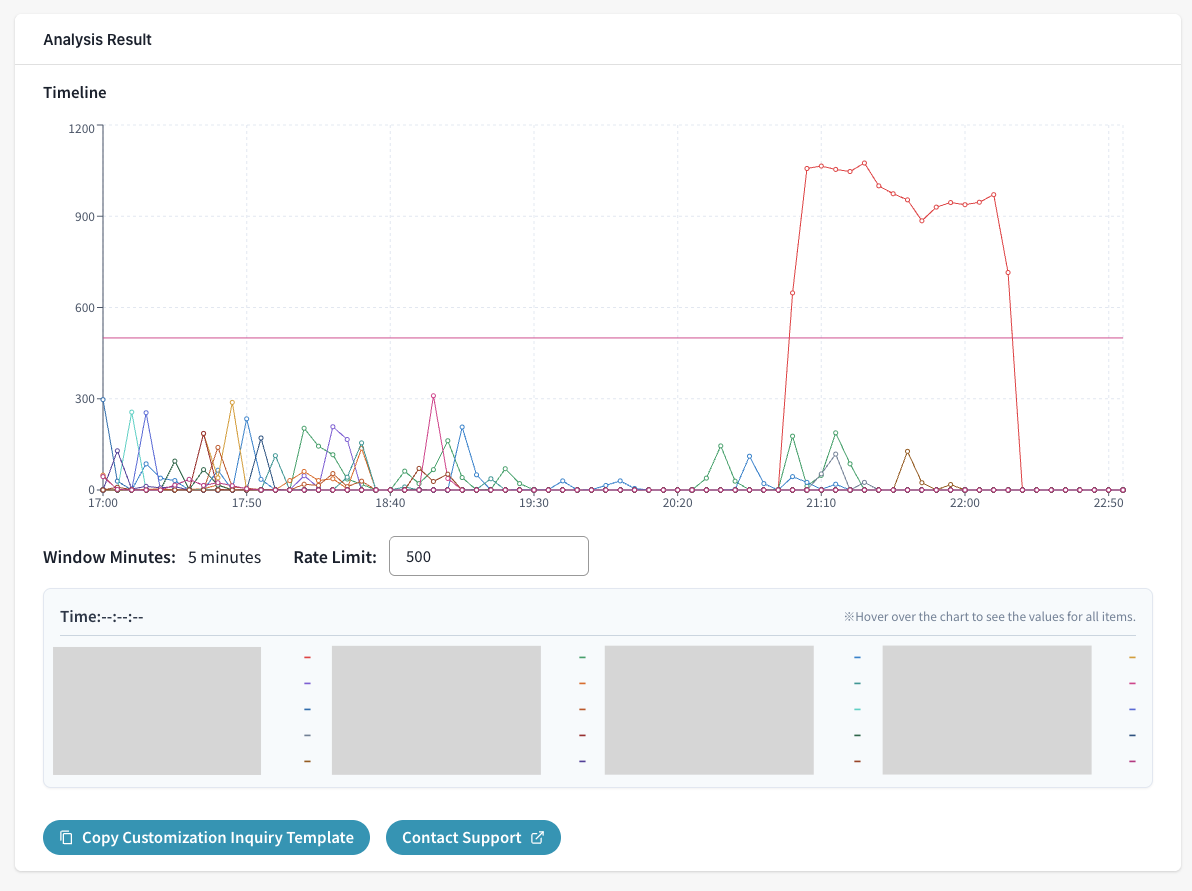
In this example, there was a significant gap between the spiking and normal traffic, so we were able to set the threshold close to the normal request spikes. However, if normal and suspicious request counts are similar, further investigation will need to take place. Additionally, if it is difficult to differentiate based on just request count itself, you may need to apply filters such as aggregated IP addresses or JA4 fingerprints.
Please note as we introduced in our post "AWS WAF supports JA4 fingerprint," JA4 fingerprint is a value calculated from the TLS Client Hello. Therefore, if the value cannot be calculated, it will not be present in the WAF logs and the data will not be available in Rate Dashboard either.
4. Applying Rules Based on the Investigated Threshold
Let's walk through the steps to create a rule based on the threshold of 500 requests per 5 minutes identified above. There are three ways to do this:
- Add a rule from the WAF Config settings screen in the WafCharm Console
- Add a rule from the AWS WAF console
- Request a customization
Add a rule from the WAF Config settings screen in the WafCharm Console
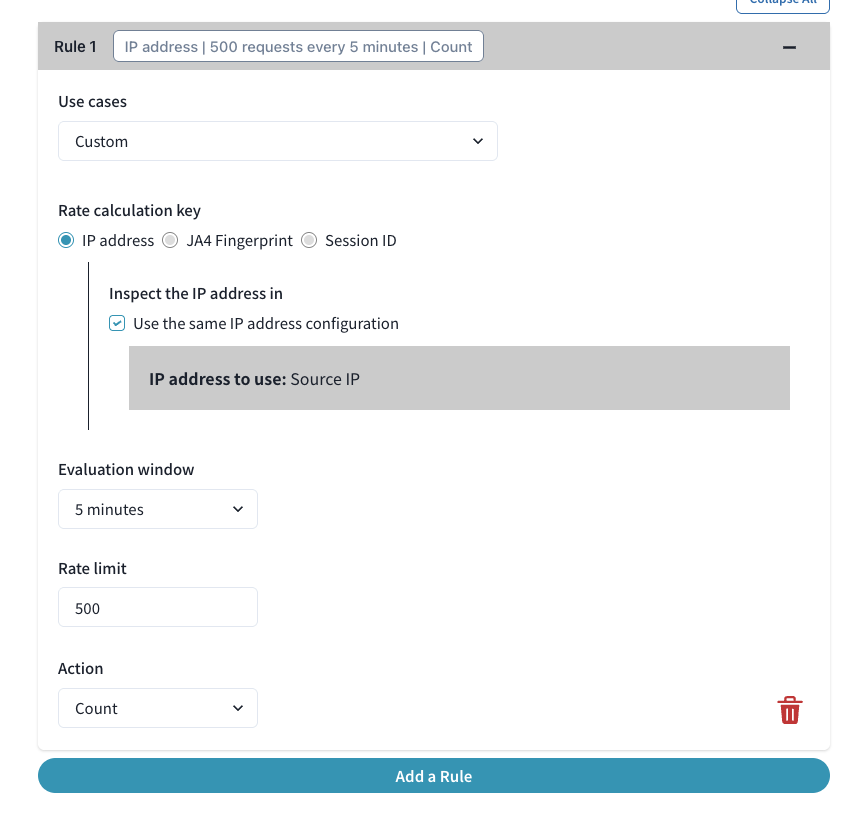
As described in Rate-based for WAF Configs using the Advanced Rule policy, it is possible to add relatively simple rate-based rules directly from the WafCharm Console.
With a threshold of 500 requests per 5 minutes, an aggregation key of IP address, and no additional filtering conditions, adding a rate-based rule from the WafCharm Console would likely be the quickest approach:
- Use case: Custom
- Rate key: IP address (using source IP)
- Evaluation window: 5 minutes
- Rate limit: 500
For the action, you can choose from Count, Block, CAPTCHA, and Challenge. If you want to monitor the situation first, you can initially set the action to Count and change it to Block later. If the investigated threshold is unlikely to trigger false positives, or if fast blocking is more important than avoiding false positives, setting a different action from the start can be a better option.
Add a rule from the AWS WAF console
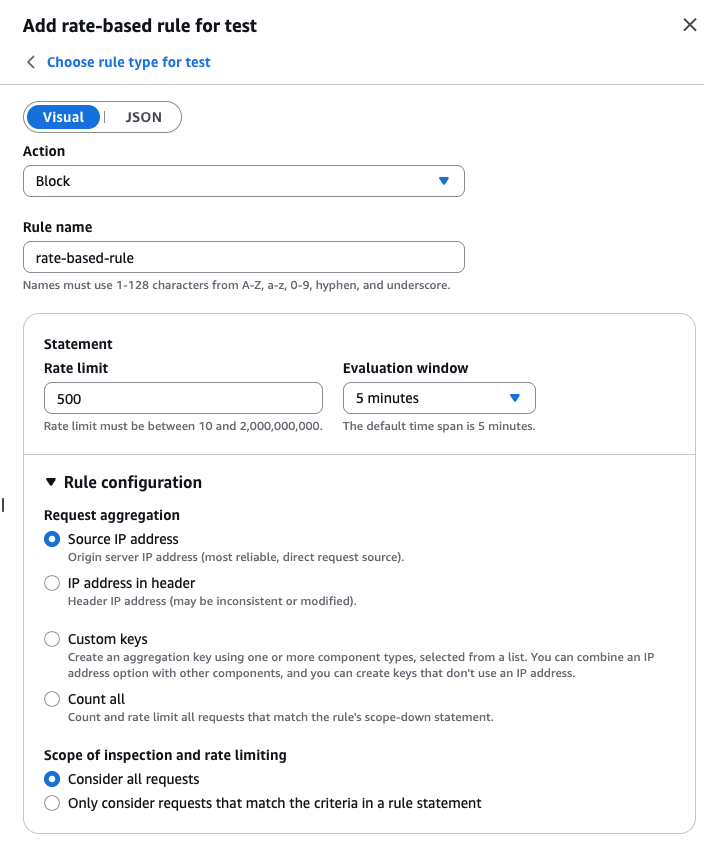
You can also add a similar rule from the AWS WAF console. Since the steps differ between the new console experience and the standard console experience (the older WAF console), please refer to the official AWS documentation for details.
The settings are the same as when adding the rule from the WafCharm Console. However, please note that rules added from the AWS WAF console are treated as customer-managed rules. To prevent unexpected behavior, always set the priority to a value between 0 and 99.
Request a customization
For a threshold of 500 requests per 5 minutes with an aggregation key of IP address and no additional filtering conditions, you can configure the rule from the WafCharm Console as described above. If you need more granular filtering, you can either configure it from the AWS WAF console or request a customization through WafCharm.
For example, if the spiking requests are limited to a specific URI such as "/contact," specifying this as a filtering condition helps avoid unintentionally blocking legitimate requests to other pages. When requesting a customization, click the "Copy Customization Inquiry Template" button at the bottom of Rate Dashboard, adjust the template content as shown below, and submit your inquiry.
- Target WAF Config: "WAF Config name"
- Rate Limit: 500
- Window Minutes: 5min
- Request Aggregation: IP Address
- [Optional] Additional Conditions: (e.g., URI, headers, etc.; multiple values allowed)
- URI starts with /contact
- Rule Action: Count
For more details on filtering conditions, aggregation keys, and related settings, please also refer to the blog post below.
- How to use rate-based rules
- You can now specify detailed conditions in rate-based rules
- AWS WAF now supports URI paths as custom key in rate-based rules
- You can now select the evaluation window for rate-based rules
5. Conclusion
In this post, we introduced Rate Dashboard, a feature included in the Log Intelligence option. We will continue to expand the Log Intelligence option with new features, so stay tuned.