


Table of Contents
- 1. Introduction
- 2. Target Architecture Overview
- 3. About the Default Action
- 4. How to Block Access Except Specific Users
- 5. Conclusion
1. Introduction
WafCharm provides rules designed to detect common web attacks. As such, a typical usage pattern on AWS WAF is to detect suspicious requests using rules and allow requests that are not detected, treating them as legitimate.
However, depending on how AWS WAF is being used, there may be cases where access is not intended from anyone other than specific users in the first place.
In this blog post, we introduce how to create rules that block requests from all users except those authorized users, for environments where access from unspecified users is not expected.
2. Target Architecture Overview
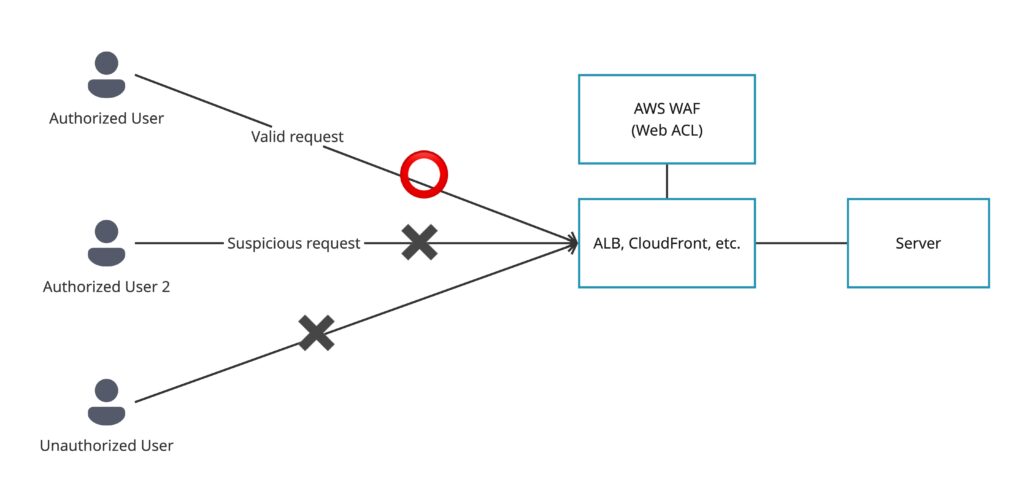
The target architecture for this setup is shown below. In this configuration, AWS WAF (web ACL) is attached to an ALB or CloudFront distribution. Authorized users are allowed to access the backend servers, while access from unauthorized users is blocked.
Even for authorized users, requests are still inspected by WafCharm rules, and any suspicious requests are blocked.
3. About the Default Action
The Default Action is a setting configured per web ACL in AWS WAF. It specifies how AWS WAF should handle requests that do not match any of the rules defined in the Web ACL when requests are inspected.
For example, if a web ACL contains rules A, B, and C, and you want requests that do not match any of these rules to ultimately be allowed, you would set the Default Action to Allow.
Conversely, if you want to block requests that do not match rules A, B, or C, you would set the Default Action to Block. When this setting is used, you must define rules that explicitly allow requests you intend to accept. If no such allow rules exist, all requests will be blocked regardless of their content, so caution is required.
If you expect to receive requests from an unspecified or broad range of sources, the Default Action should be set to Allow. However, in cases where access is limited to specific sources, setting the Default Action to Block may also be acceptable.
That said, in scenarios like the target architecture described earlier, where even expected access sources should still be inspected, or when using WafCharm, setting the Default Action to Block can lead to unexpected behavior. There is also a risk that allow rules may cause certain rules you actually want to evaluate to be skipped.
Since this article assumes a configuration that uses WafCharm, we will proceed under the assumption that the Default Action is set to Allow.
For more details about the Default Action, please refer to the following official AWS documentation:
Setting the protection pack (web ACL) default action in AWS WAF
4. How to Block All Access Except From Specific Users
To block access from all users except specific ones, this can be achieved by identifying authorized users based on their IP addresses and blocking all other traffic. Accordingly, you will create a rule that blocks requests from all IP addresses except the specified ones.
The overall procedure is as follows.
Notes:
- The steps below assume the new AWS WAF console. The procedure may differ when using the old WAF console.
- If there are discrepancies between the actual console screens and the steps described here, please refer to the relevant AWS official documentation.
- Open the AWS WAF console.
- Open the IP sets page.
- Create an IP address set.
For detailed instructions, please refer to Creating and managing an IP set in AWS WAF in the AWS documentation. - In the target web ACL, add a new rule.
- Select Custom rule.
- Select an IP-based rule.
- Set the action to Block.
- Enter a rule name.
- Select [Use an existing IP set].
- Select the IP set created in step 3.
- In the rule configuration, enable [Negate statement results].
- If necessary, adjust the [Source IP address for origin].
- In the rule editor screen, switch from Visual to JSON view.
- Change the value next to
"Priority":(for example, 1) to a number between 0 and 99.
Since the purpose of this rule is to block requests originating from IP addresses that are *not* registered, it should generally be evaluated before other rules.
If there are no rules that need to be evaluated before this one, set the priority to 0 or 1.
When using WafCharm, the position of WafCharm-provided rules is fixed by design. For details on the rule order, please refer to the following help page:
About WafCharm rules for AWS WAF v2 - Add the rule.
After completing the above steps, a rule similar to the following will be added:
{
    "Name": "rule-name",
    "Priority": 1,
    "Statement": {
        "NotStatement": {
            "Statement": {
                "IPSetReferenceStatement": {
                    "ARN": "IP-set-ARN"
                }
            }
        }
    },
    "Action": {
        "Block": {}
    },
    "VisibilityConfig": {
        "SampledRequestsEnabled": true,
        "CloudWatchMetricsEnabled": true,
        "MetricName": "rule-name"
    }
}
From this point onward, any attempt to access the target environment from IP addresses that are not registered in the IP set will be blocked by this rule.
To add or remove IP addresses, edit the IP set created in step 3 from the IP sets page.
For more details on operating the AWS WAF console and related settings, please also refer to the following AWS official documentation:
Configuring protection in AWS WAF
5. Conclusion
Depending on your usage scenario, there may be cases where access is not intended from anyone other than specific users and access restrictions are required. In such cases, we hope you will consider using the approach described above to create a rule that blocks requests from all IP addresses except the specified ones.